

Northern lights: How to best capture the aurora borealis on your phone

Incredible northern lights dazzle across MN, United States
Tuesday's northern lights were among the most intense shows we've seen in decades, with the aurora extending down to central Mexico. FOX 9's Cody Matz explains how this incredible show came to be.
ST. PAUL, Minn. (FOX 9) - A severe geomagnetic storm is forecast to arrive at Earth by midday Wednesday and last into the evening, significantly increasing the chances for the northern lights to be visible in Minnesota again.
Your smartphone is powerful enough to capture the aurora if you know these key tricks.
Aurora possible again this week
What we know:
The National Oceanic and Atmospheric Administration (NOAA) Space Weather Prediction Center says geomagnetic storm conditions are currently at G3 (strong) levels after previously reaching G4 (severe). Elevated geomagnetic storm levels are likely to carry over into Nov. 14, which could mean additional chances to see the aurora.
Tips for Viewing the Northern Lights
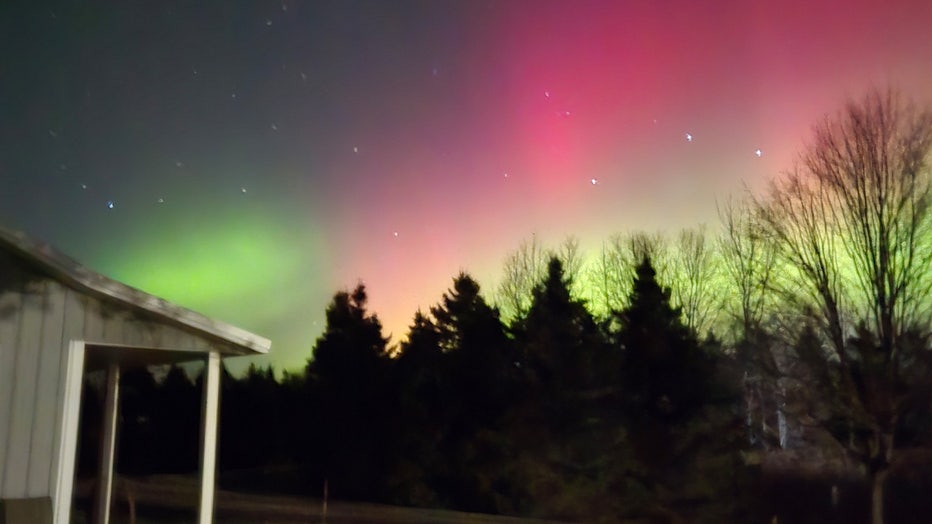
FOX 9 viewer submissions of the Northern Lights seen across Minnesota on Nov. 11, 2025.
The NOAA recommends the following tips for the best chance to see the Northern Lights.
- It’s generally better to go north.
- To have the best opportunity to see them, get as far away from city lights as possible. You can use this map to find the best spots near you.
- Spring and fall are often the best times to see the aurora, because "the subtleties in the way the solar wind interacts with Earth’s magnetosphere" can create larger geomagnetic storms.
You can find the latest space weather forecast on NOAA’s website here.
How to Capture the Northern Lights with Your Phone
What you can do:
DSLR cameras offer the best control for aurora photography, but your smartphone is perfectly capable of capturing hints of the lights. The key is stability and long exposure.
Best settings for your camera:
Turn Off the Flash: Locate and turn off the lightning bolt symbol on your camera screen.
Use Night Mode: If your phone has a dedicated Night Mode (available on iPhone 11 and later, usually indicated by a moon symbol), use it. Night Mode automatically uses a longer exposure time to gather light.
Ensure Stability: Any movement during a night shot will cause blurriness. Use a tripod, or brace your phone against a sturdy surface.
Use the Timer: To prevent camera shake from tapping the screen, use the timer feature. This gives you time to step away from the phone before the long exposure begins.
Manual Adjustments (for iPhones):
To access manual controls on an iPhone camera, tap the arrow symbol at the top of the screen. A row of controls will appear at the bottom:
Select Exposure: Tap the exposure icon (often the same moon symbol as Night Mode).
Set Max Exposure: A slider will appear. Drag the slider to the "Max" setting. This forces the longest possible exposure time, allowing the most light (and color) to hit the lens.